
Create your Shen AI account and get your first SDK key
Create your Shen AI account and get your first SDK key
You're almost ready to start integrating Shen AI into your application. Before you can install and initialize the SDK, you'll need to create your account, activate your trial, and generate the credentials your application will use.
This guide walks you through the onboarding process and explains how licenses and SDK keys work, so you'll be ready to start integrating in just a few minutes.
How to start using Shen AI
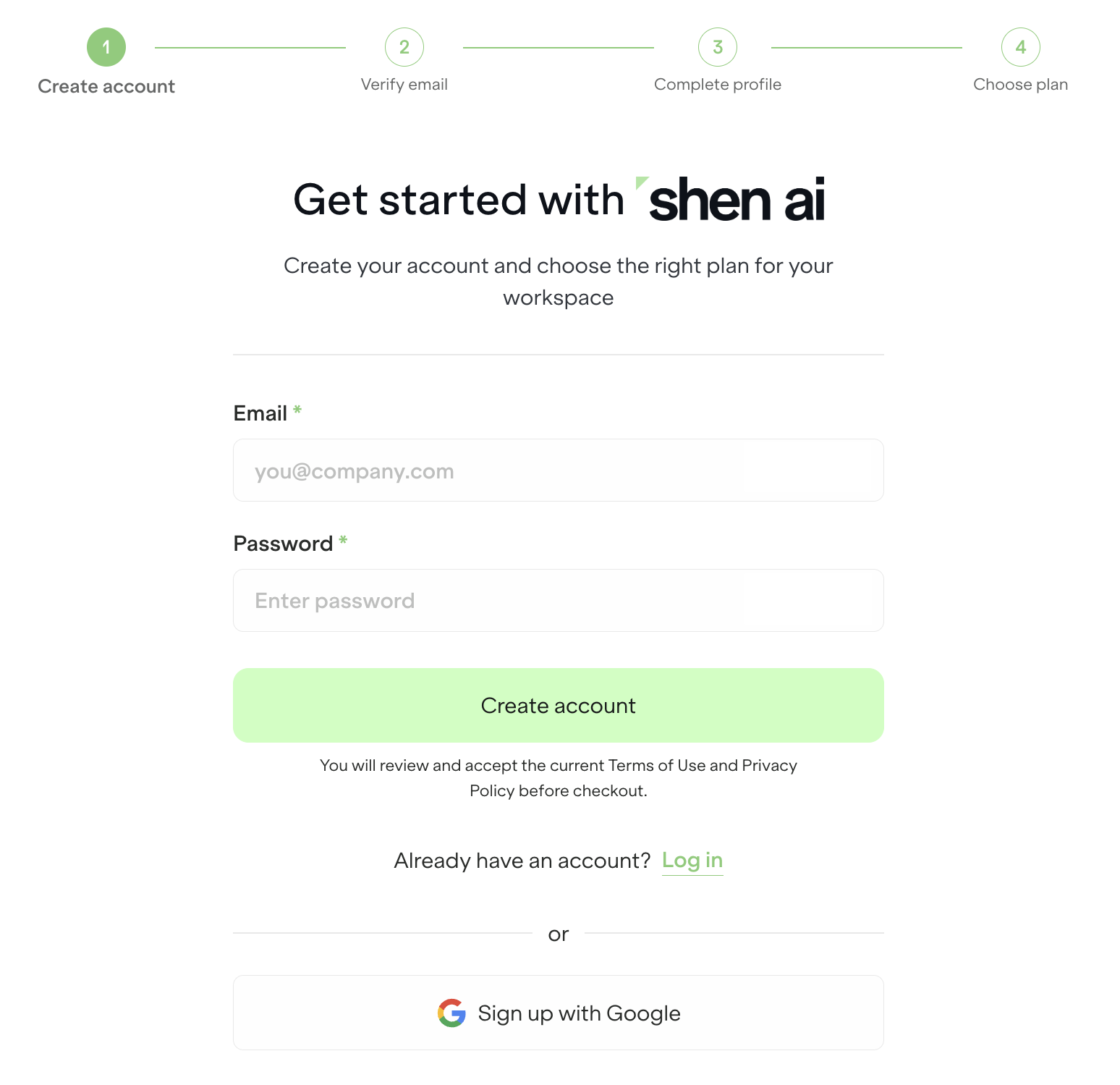
Step 1: Create your account
To get started, create a Shen AI account using your work email address and a secure password. If you prefer, you can also sign up using your Google or Apple account.
Once you've submitted the registration form, we'll send a verification code to the email address you provided.
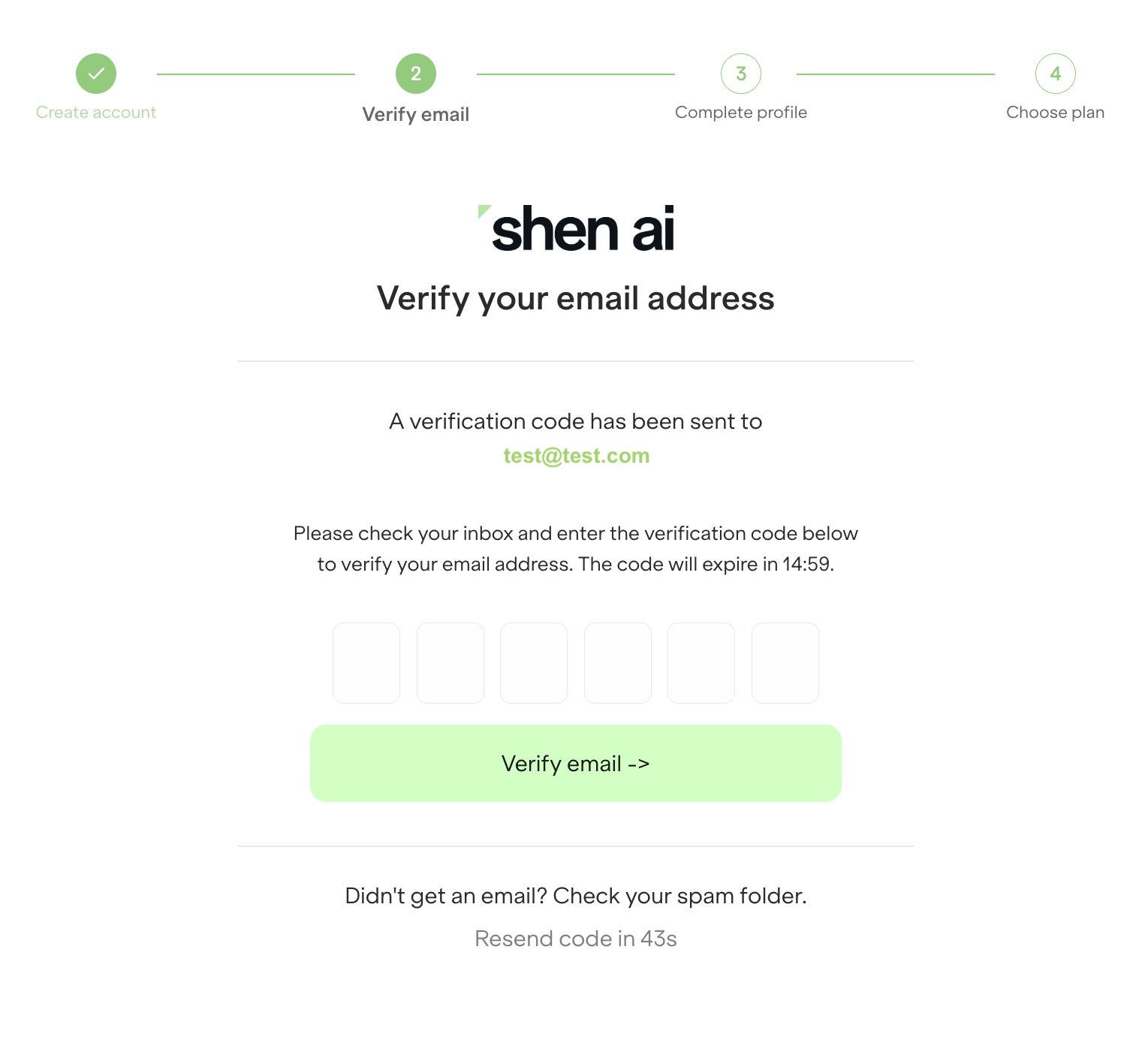
Step 2: Verify your email
Enter the verification code to activate your account. This helps us confirm ownership of the email address and ensures that you'll receive important account and billing notifications. If the email doesn't arrive within a few minutes, check your spam folder or request a new verification code.
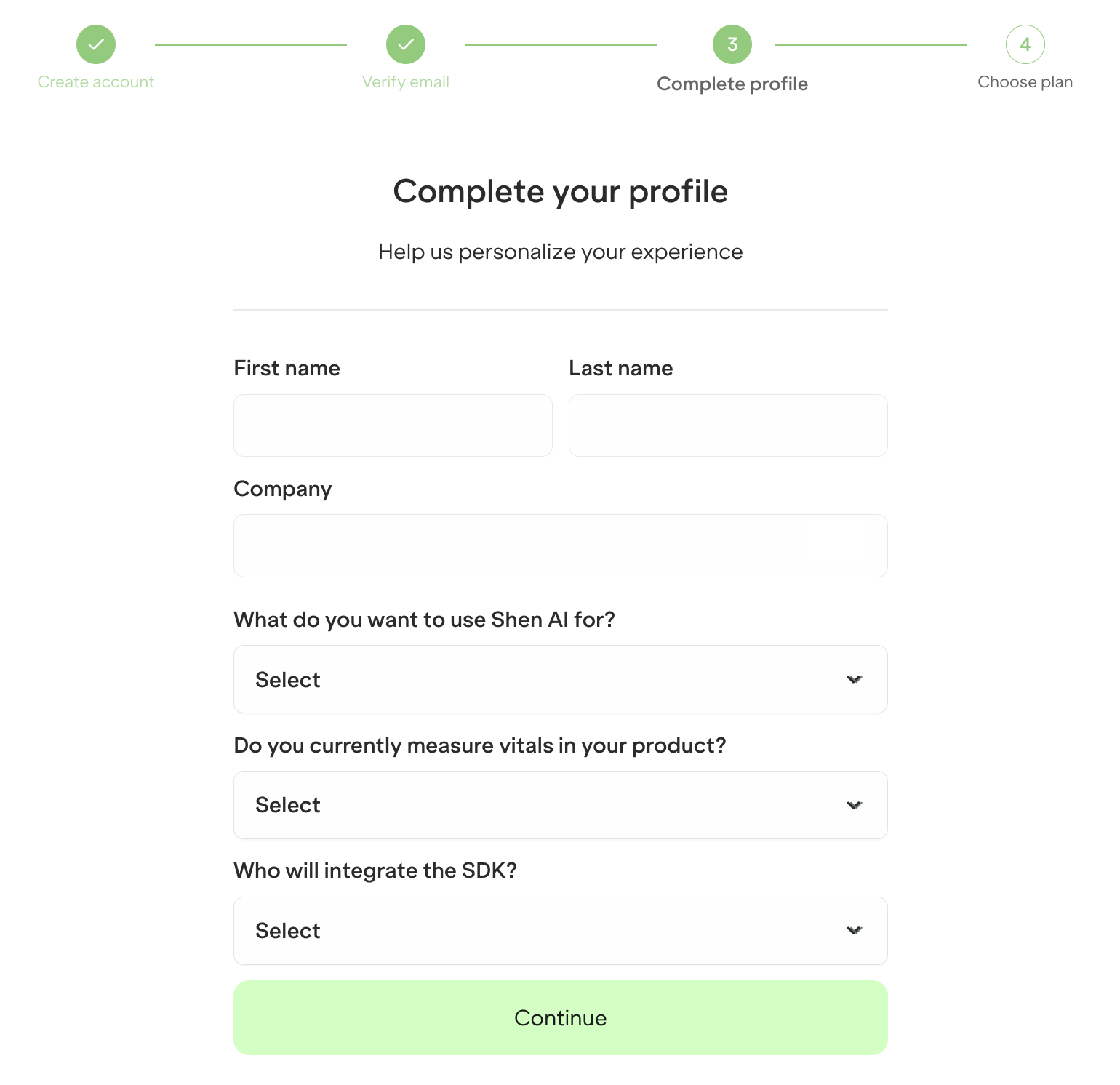
Step 3: Complete your profile
Next, you'll be asked to provide a few details about yourself, your company, and how you plan to use Shen AI. These questions help us personalize your experience and better understand your intended use case. They don't affect the SDK itself, and you can update your information later if needed.
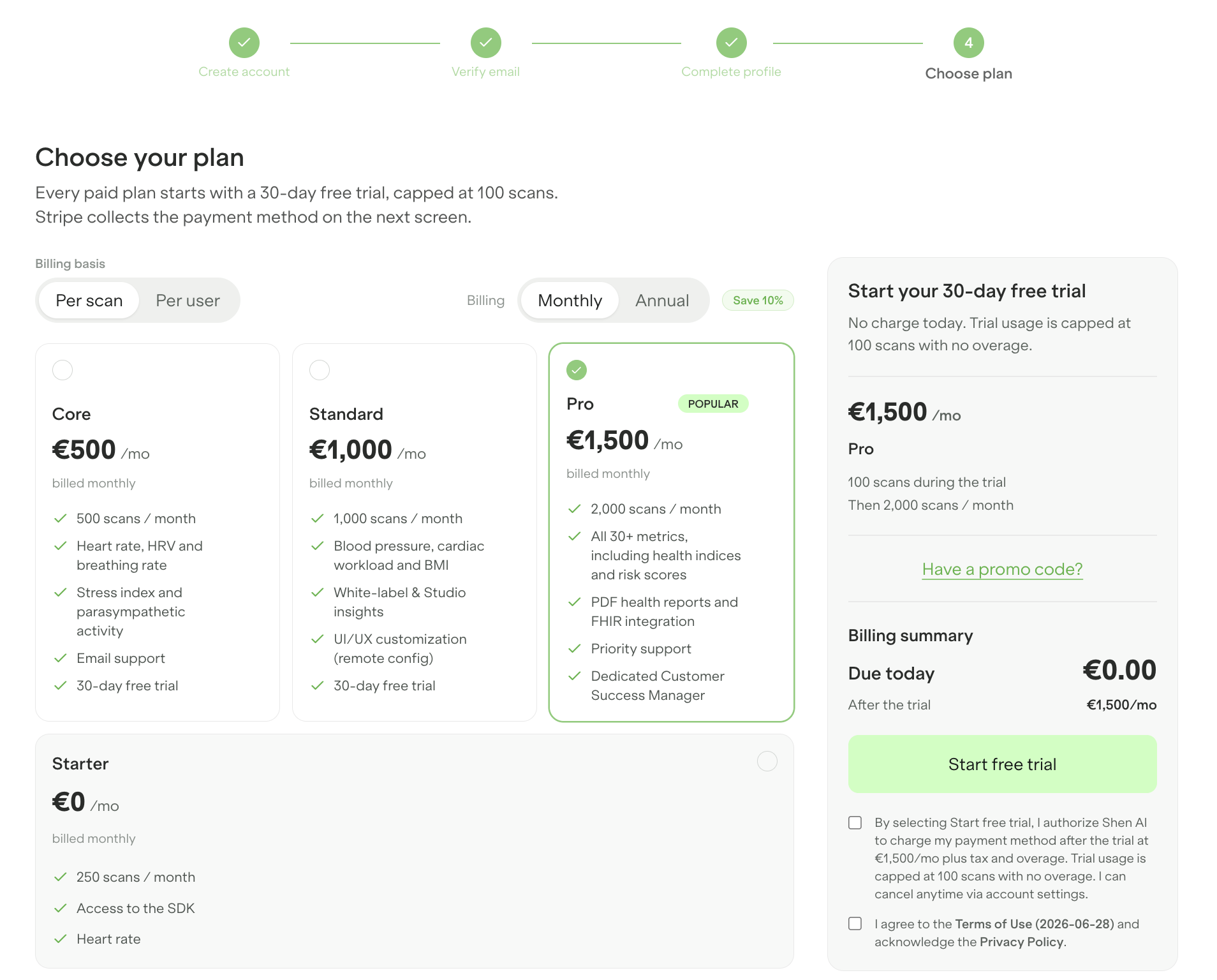
Step 4: Start your free trial
The final step is selecting your subscription plan and starting your 30-day free trial.
Although you'll choose a plan during sign-up, you won't be charged until the trial period ends. This gives you time to explore the platform, integrate the SDK, and evaluate whether Shen AI is the right fit for your product.
Once your trial has been activated, you'll have access to the Shen AI Platform and all the resources needed to begin development.
How to create your first license
After signing in, open Licenses and SDK keys from the navigation menu.
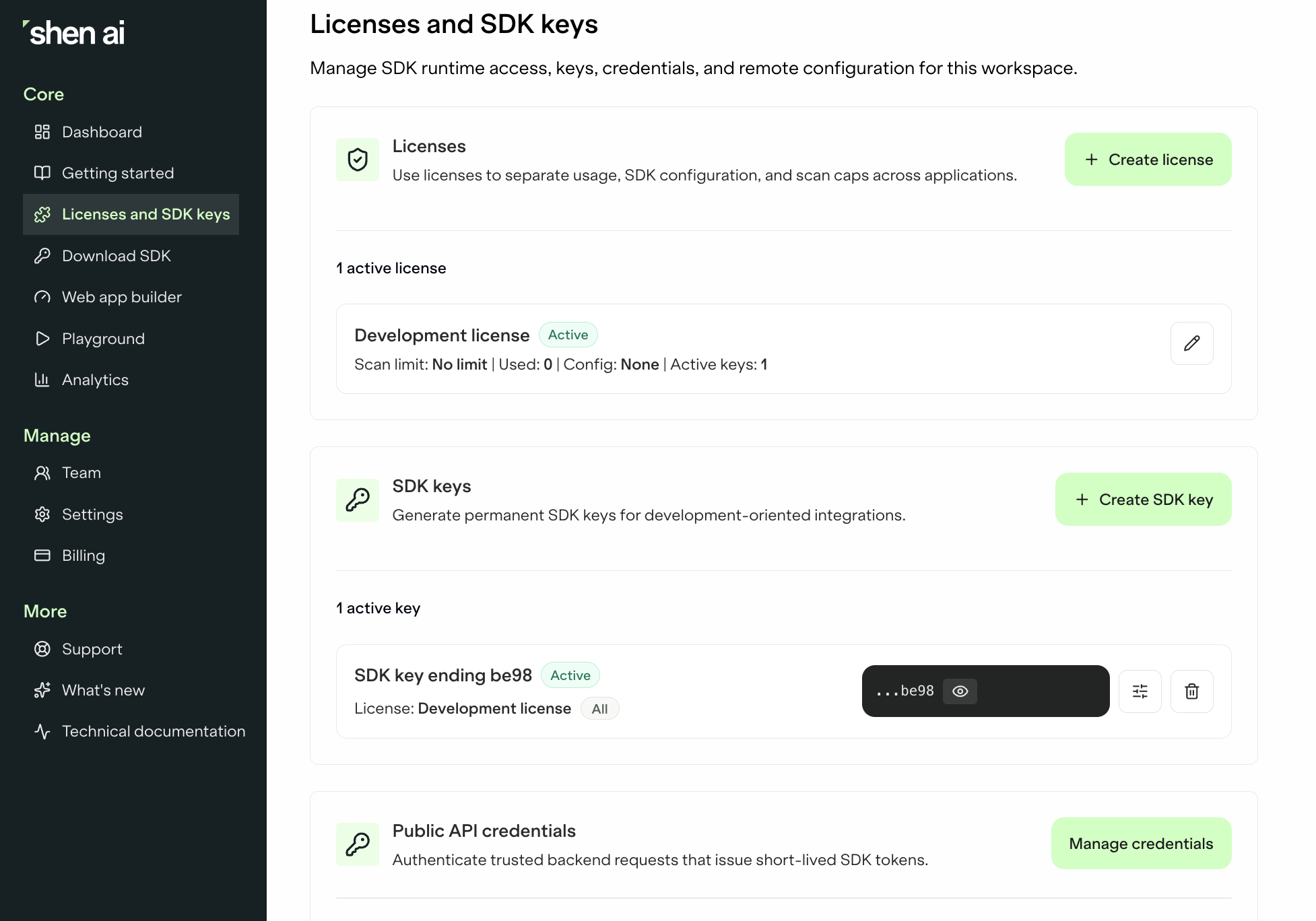
The first thing you'll create is a license. A license represents the application or project you're building and defines the capabilities available to it, such as the available health markers and scan limits.
To create a license:
1. Click Create license.
2. Give your license a descriptive name.
3. Select the appropriate license type.
4. Configure the scan limit, if applicable.
5. Click Create license to save it.
If you're planning to build multiple applications or separate production and testing environments, you can create additional licenses later.
💡 Tip: Choose a name that clearly identifies your project, such as Wellness App, Clinical Trial, or Insurance Demo. Clear project names make it easier to manage multiple applications and quickly identify the correct project when reviewing measurements or analytics.
How to generate your first SDK key
Once your license has been created, you're ready to generate an SDK key.
SDK keys are the credentials your application uses to authenticate with Shen AI. Every SDK key is associated with a specific license.
To generate your first SDK key:
1. Click Create SDK key.
2. Enter a descriptive name for the key.
3. Select the license you want the key to use.
4. Choose the target platform, such as Mobile or Web.
5. Click Generate key.
Your new SDK key will appear in the list below, where you can view, copy, or manage it whenever needed.
Good to know: You can create multiple SDK keys under the same license. For example, you might create separate keys for your Android app, iOS app, web application, or different deployment environments such as development, staging, and production.
Understanding licenses and SDK keys
Although they're closely related, licenses and SDK keys serve different purposes.
A license defines what your application is allowed to do. It determines the available features and usage limits associated with your subscription.
An SDK key is the credential your application uses to access that license. Each key is linked to a single license, but a license can have multiple SDK keys associated with it. If an SDK key ever needs to be replaced - for example, as part of your security procedures - you can generate a new one without creating a new license.
This makes it easy to manage different applications or environments while keeping them under the same project.
Keep your SDK keys secure
SDK keys should be treated as sensitive credentials.
Never commit them to source control or include them in public repositories. Instead, store them securely using environment variables, your platform's secure storage mechanisms, or a dedicated secrets management solution.
If you believe an SDK key has been exposed, generate a new one and remove the compromised key from your account.
Next step
Before moving on, confirm that you can see both your license and your SDK key in the Licenses and SDK keys section of the Shen AI Platform. Once they're available, you have everything you need to begin integrating Shen AI into your application.
Continue with Installing the Shen AI SDK, where you'll learn how to choose the correct SDK package for your platform and complete the installation.

More blog posts
Sagittis et eu at elementum, quis in. Proin praesent volutpat egestas sociis sit lorem nunc nunc sit.

How digital health apps can use heart rate data
Explore how heart rate data can help developers build smarter digital health apps, from tracking personal baselines and exercise recovery to combining physiological signals for more personalized user experiences.
How Shen AI protects privacy and data security
Discover how Shen AI processes health measurements locally, limits data transfers, and helps developers build privacy-conscious digital health applications.
A practical introduction to the Shen AI Medical SDK
The Shen AI Medical SDK is a CE-marked Class IIa software as a medical device that estimates blood pressure, heart rate, HRV, and breathing rate from a one-minute face scan using a standard camera. This guide explains what the certification covers, how the technology works, how the Medical SDK differs from the Wellness SDK, and which product decisions teams should make early when building regulated medical applications.